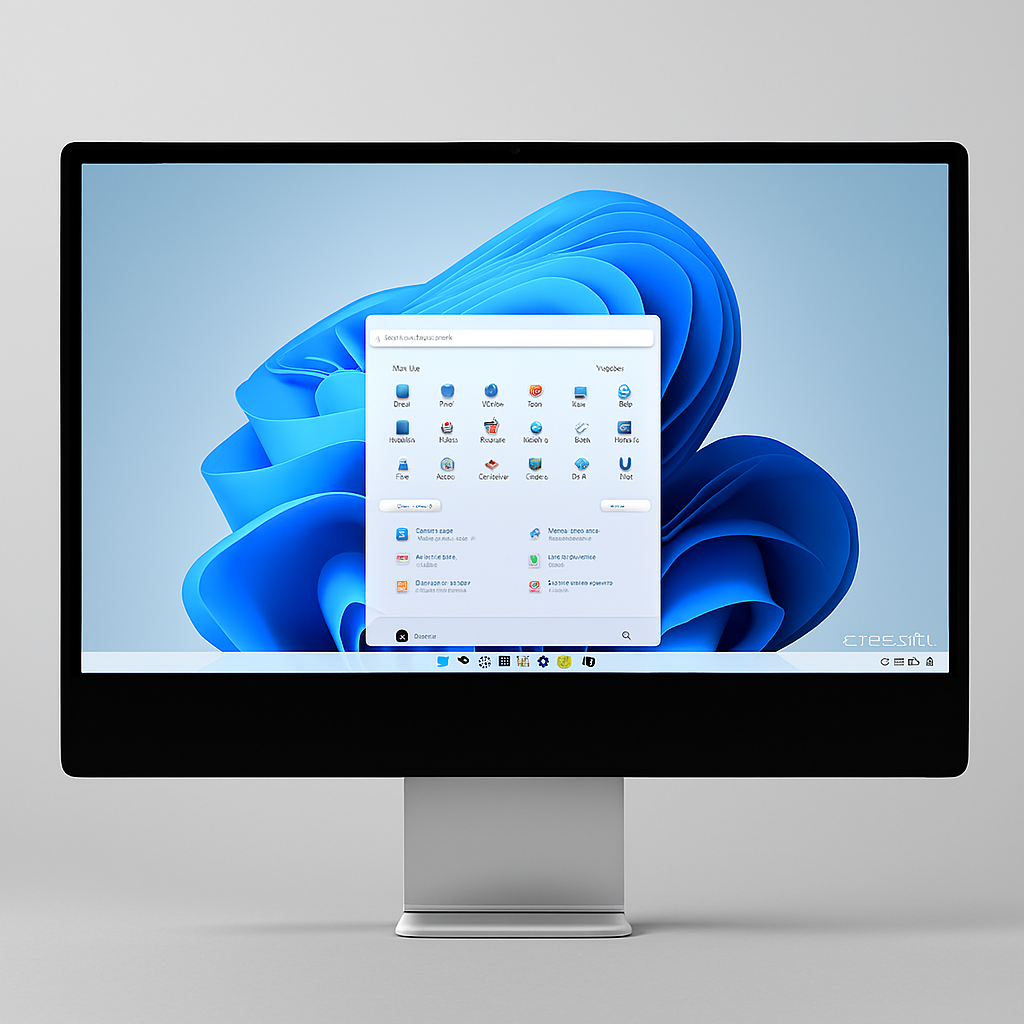
In today’s fast-paced digital environment, the ability to efficiently manage multiple applications and workflows on a single screen is not just a luxury—it’s a necessity. For professionals, students, and creatives alike, mastering the art of multitasking can dramatically enhance productivity and reduce digital clutter. This is where Windows 11’s revolutionary Snap Layouts and Snap Groups features come into play, offering a sleek, intuitive, and powerful way to organize your digital workspace. However, even the most sophisticated software requires robust hardware to function seamlessly. When your device underperforms due to aging components, malware, or system corruption, seeking expert & professional laptop repairs is the crucial first step to ensure your machine can handle these advanced multitasking demands. A tuned and healthy PC is the foundation upon which software efficiency is built.
Beyond internal performance, the physical state of your device is equally critical. The clarity and functionality of your display are paramount when arranging multiple windows side-by-side. A cracked, dim, or flickering screen can severely undermine the visual precision offered by Windows 11’s Snap features. For users experiencing such physical impairments, a reliable laptop screen repair or replacement service in Sydney can restore the visual fidelity necessary to truly master these multitasking tools. A pristine display transforms the Snap experience from a functional trick into a genuinely immersive and productive workflow solution.
Table of Contents
ToggleUnlocking a New Era of Productivity: What Are Snap Layouts & Groups?
Gone are the days of manually resizing and dragging windows to awkward corners of your screen. Windows 11 introduces a systematic and elegant approach to window management designed to work intuitively with how you naturally work.
Snap Layouts: Your Instant Window Manager
Snap Layouts are visual overlays that appear when you hover over any window’s maximize button (or use the keyboard shortcut Win + Z). These layouts offer a selection of pre-defined grid patterns, ranging from a simple two-pane split to complex six-zone arrangements. With a single click, you can “snap” your active window into a specific zone. The system will then automatically prompt you to select other open applications to fill the remaining slots, creating an instant, organized desktop mosaic.
Snap Groups: The Power of Session Memory
This is where Windows 11 truly shines. A Snap Group is the collection of applications you have snapped into a particular layout. The operating system doesn’t just remember their positions; it treats the entire group as a single task on your Taskbar and in Alt+Tab switcher. If you need to briefly minimize everything to access your desktop or a full-screen application, you can restore the entire complex layout with one click on the group’s preview on the Taskbar. This feature is a game-changer for context switching between different projects or workflows.
Foundational Skills: How to Use Snap Features Effectively
Mastering the basics is key to building advanced workflows. Here are the primary methods to activate and use Snap.
The Hover Method: Simplicity Itself
Hover your mouse cursor over the maximize/minimize button of any window. The Snap Layouts overlay will appear. Choose your desired grid segment, and the window will snap into place. The empty zones will show thumbnails of your other open windows for you to complete the layout.
Keyboard Shortcuts: The Power User’s Path
For speed, nothing beats keyboard shortcuts:
-
Win + Left/Right Arrow: Snap the active window to the left or right half of the screen.
-
Win + Up/Down Arrow: Snap to the top or bottom half, or cycle through quadrants.
-
Win + Z: Directly activate the Snap Layouts menu for the active window.
-
Win + Tab: Opens Task View to see all Snap Groups and virtual desktops.
Touch & Snap: For Touchscreen Users
On a touchscreen, drag the window to the top of the screen to see the Snap Layouts bar appear. Drag and drop the window into your chosen zone.
Advanced Strategies to Master Multitasking with Windows 11
Moving beyond the basics unlocks the true potential of a streamlined workflow.
1. Tailoring Layouts to Your Monitor
The available Snap Layouts dynamically adjust based on your screen’s resolution and size. A widescreen 4K monitor will offer more vertical and complex grid options than a standard laptop screen. Experiment to see which layouts best suit your monitor and daily tasks.
2. Combining Snap Assist with Virtual Desktops
Use Virtual Desktops (Win + Tab > New desktop) to create dedicated workspaces for different projects—e.g., one for research, one for communication, one for creative work. On each desktop, create a unique Snap Group tailored to that activity. This keeps your mind and your digital space focused.
3. Mastering the Snap Bar & Group Recall
Get comfortable using the Snap Group thumbnail on the Taskbar. Right-clicking it offers options to close the entire group at once. Remember, restoring the group brings back all windows in their exact positions and states.
4. Leveraging Browser Tab Groups as a Companion
Modern browsers like Edge and Chrome offer tab grouping. Use a snapped browser window for a specific project and create a tab group within it for all related websites. This creates a powerful two-tier organizational system: Snap Groups for applications, and Tab Groups for web content.
Optimizing Your Hardware for Peak Multitasking Performance
Sophisticated software demands capable hardware. To truly master multitasking with Windows 11, your laptop must keep up.
The RAM Requirement: Fuel for Your Workflow
Each application in a Snap Group consumes memory. For comfortable multitasking with a browser, document editor, communication app, and reference material open simultaneously, 16GB of RAM is the recommended sweet spot. 8GB is the bare minimum, while 32GB or more future-proofs your system for heavy professional use.
The SSD Imperative: Speed for Switching
A Solid-State Drive (SSD) is non-negotiable. It ensures applications in your Snap Groups launch instantly and switch seamlessly. The slow read/write speeds of a traditional Hard Disk Drive (HDD) will create frustrating lag, negating the speed benefits of Snap.
Display Considerations: Real Estate is Everything
A larger, high-resolution screen provides more usable space for complex layouts. Consider an external monitor for a desktop-like experience. This is where the investment in a quality display, maintained through professional services when needed, pays enormous dividends.
Troubleshooting Common Snap Issues
Even the best features can occasionally hiccup. Here’s how to fix common problems.
-
Snap Layouts Not Appearing? Ensure the feature is enabled in Settings > System > Multitasking. Check the “Snap windows” options.
-
Applications Won’t Snap? Some legacy or full-screen exclusive apps (like certain games) may not support the feature. Try running them in windowed mode.
-
Groups Not Saving? This can be a sign of system instability or a graphics driver issue. Update your display drivers via Windows Update or the manufacturer’s website.
-
Feature Feels Laggy? This often points to underlying hardware strain. Check your RAM and CPU usage in Task Manager (Ctrl+Shift+Esc). High usage may indicate a need for a hardware upgrade or a professional system optimization.
Building Real-World Workflows: Snap in Action
Let’s translate features into practical daily use.
-
The Content Creator: Snap a video editing timeline to the left half, a preview window in the top-right quadrant, and a asset browser or script in the bottom-right quadrant.
-
The Financial Analyst: Keep a live spreadsheet snapped to the main two-thirds of the screen, with email and a data dashboard snapped in a vertical column on the side.
-
The Student/Researcher: Snap a PDF or digital textbook to the left, a note-taking application like OneNote to the top-right, and a reference browser window to the bottom-right.
-
The Project Manager: Maintain your project management tool in the center, with communication apps like Teams and Slack snapped to the sides for constant, organized oversight.
Conclusion: From Software Mastery to Hardware Assurance
Windows 11’s Snap Layouts and Snap Groups represent a fundamental shift towards an intelligent, user-centric computing experience. By investing the time to master multitasking with Windows 11, you reclaim time, reduce cognitive load, and unlock a fluidity in your work that feels genuinely futuristic. It transforms your screen from a chaotic pile of windows into a dynamic, purposeful command center tailored to your brain’s workflow.
However, this software excellence is wholly dependent on the health and capability of your physical machine. A slow processor, insufficient RAM, or a failing drive will cripple the experience. For residents and professionals in Sydney seeking to ensure their hardware is a catalyst, not a bottleneck, for this productivity revolution, Computer Repair Sydney stands as a vital partner. Beyond critical laptop screen replacement in Sydney, their comprehensive services include professional diagnostics, performance upgrades (SSD & RAM installation), virus removal, and full system tune-ups. By combining the power of optimized software with expertly maintained hardware, you create an unstoppable productivity ecosystem, allowing you to focus on what truly matters—your work, your creativity, and your results.