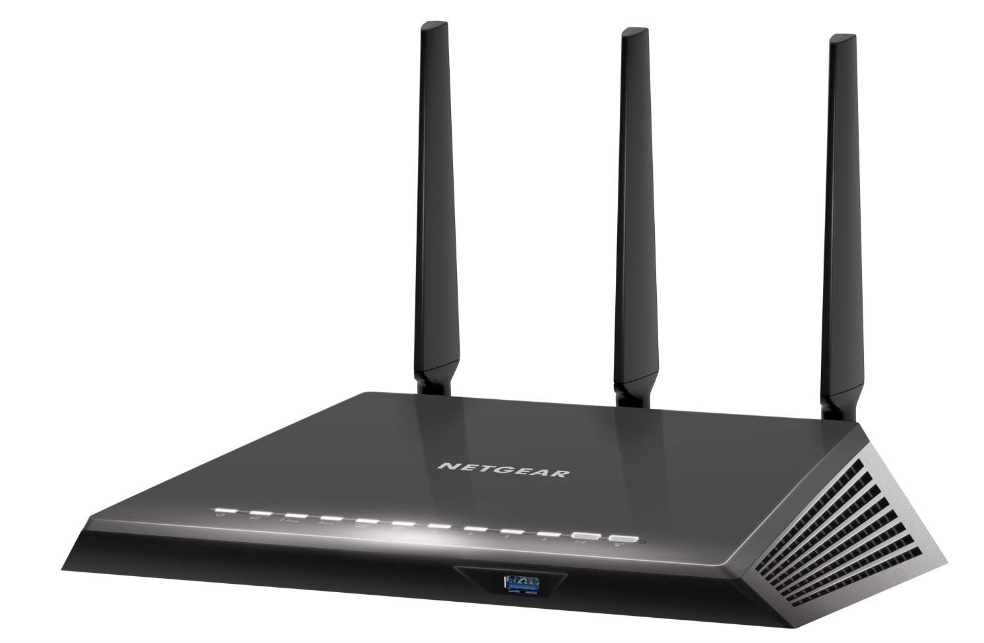
Boosting Your Network with the Right Router and Setup
In today’s connected world, fast and stable internet isn’t just a convenience; it’s essential. Whether you’re working from home, streaming HD video, gaming online, or connecting multiple smart devices, having a strong wireless network foundation can make all the difference. A Netgear router is one of the most popular options for users seeking a reliable home network solution.
However, simply plugging in a router isn’t enough to guarantee optimal performance. This guide will walk you through how to use a Netgear router effectively to improve speed, extend coverage, and enhance network stability. We’ll also highlight premium products available through Jazz Cyber Shield that help elevate your network setup even further.
Why Router Setup Matters for Speed and Stability
Many users assume that internet speed issues are caused solely by the ISP. While your service plan influences peak speeds, the actual performance your devices experience depends heavily on your local network setup:
- Router placement
- Wireless interference
- Network congestion
- Signal range and strength
- Firmware and configuration settings
With a properly configured wifi router, especially a modern model from Netgear, you can significantly reduce lag, eliminate dead zones, and improve overall connectivity.
Getting Started with Your Netgear Router
- Unbox and Position Your Router
Proper placement is the first step toward strong coverage:
- Elevate the router above floor level.
- Position it centrally in your home or office.
- Avoid placing it near thick walls, appliances, or metal surfaces.
- Connect to Modem
Use an Ethernet cable to connect the modem’s LAN port to the Netgear router’s WAN/Internet port. This establishes the primary link between your internet source and your router.
- Power On and Log In
- Plug in and power up the router.
- Connect a device (phone/laptop) via Wi-Fi or Ethernet.
- Visit the configuration URL (often routerlogin.net or 192.168.1.1) in a browser.
- Log in using default credentials (found on the router label) and complete the setup wizard.
Top Tips to Speed Up Your Network with a Netgear Router
- Update Firmware Regularly
Firmware updates improve stability, security, and performance.
- Log in to the Netgear admin panel.
- Navigate to Administration > Firmware Update.
- Check for and install the latest updates.
- Choose the Right Wi-Fi Band
Modern Netgear routers support:
- 2.4 GHz — Longer range, fewer channels.
- 5 GHz — Faster speeds, less interference.
For performance tasks like streaming or gaming, prioritize the 5 GHz band.
- Optimize Wireless Channel Settings
In dense neighborhoods, Wi-Fi channels can overlap, causing interference.
- Use built-in tools or Netgear apps to scan for the least crowded channel.
- Set your router to operate on that channel for better throughput.
- Enable Quality of Service (QoS)
QoS lets you prioritize traffic, ensuring that critical applications (like video calls or gaming) get bandwidth priority over background downloads or low-priority tasks.
- Set Up a Guest Network
A guest network prevents visitors from accessing your main LAN while still providing internet access. This can reduce bandwidth load on your primary network.
Extending Your Network Coverage
If parts of your home or office suffer from weak signal or “dead zones,” you can improve coverage with the right equipment:
Wi-Fi Extenders
These compact devices take your router’s existing wireless signal and rebroadcast it to areas that previously had poor reception.
- Easy to install
- Affordable solution
- Best for small to medium spaces with only a few dead zones
Mesh Wi-Fi Systems
Mesh setups use multiple wireless units that work together to create one seamless network.
- Each unit (node) communicates to provide strong coverage throughout the space
- Devices switch automatically to the strongest nearby signal (“roaming”)
- Ideal for large homes, multi-floor buildings, or office areas where a single access point isn’t enough
Leveraging Security for a Stable Network
Security settings can also affect network stability and performance:
- Enable WPA3 (or WPA2 if WPA3 is unavailable) for secure wireless encryption.
- Change default usernames and passwords to prevent unauthorized access.
- Disable WPS if not needed (it can be a potential vulnerability).
- Use the router’s firewall and intrusion prevention features to guard against external threats.
A network under attack or draining bandwidth on malicious traffic will inevitably slow down.
Jazz Cyber Shield’s Router and Network Solutions
For users who want more than a basic network setup, Jazz Cyber Shield provides a diverse selection of networking hardware ranging from everyday consumer devices to high-performance solutions built for demanding environments.
Available Product Categories
Residential-Grade Routers
Designed for daily internet use, these models handle streaming, remote work, browsing, and entertainment with consistent performance.
Premium Performance Routers
Built for multi-device households, these routers support advanced capabilities such as improved traffic prioritization, multi-user connectivity, and stronger internal processing for smoother performance.
Business-Ready Networking Solutions
Ideal for small offices and shared workspaces, these options offer enhanced stability, wider coverage, and features suited for professional environments.
Across all categories, Jazz Cyber Shield features trusted brands known for durable hardware, reliable throughput, and long-term firmware support, making it easier to build a network that performs consistently over time.
Troubleshooting: Common Netgear Router Issues and Fixes
Even the best hardware can run into hiccups. Here’s how to tackle common problems:
- Slow Wi-Fi Speeds
- Check ISP speed with a wired device.
- Reposition the router.
- Switch to 5 GHz if available.
- Frequent Disconnections
- Update firmware.
- Change wireless channel.
- Check for overheating or physical obstructions.
- Poor Coverage in Certain Rooms
- Add an access point or Wi-Fi extender.
- Consider a mesh network solution.
- Devices Won’t Connect
- Verify network password.
- Reset network settings on the device.
- Ensure the router’s DHCP server is enabled.
Best Practices for Long-Term Performance
Here’s a checklist to maintain top performance over time:
- Keep firmware updated to benefit from security patches and performance enhancements.
- Monitor connected devices periodically — remove unknown or unused connections.
- Reboot the router occasionally to clear memory leaks or glitches.
- Keep hardware cool and ventilated — excessive heat can degrade wireless performance.
- Document your network configuration so you can reapply settings if needed.
Comparing Wired and Wireless Use Cases
While this article focuses on improving wireless performance with a Netgear router, it’s worth noting where wired connections still shine:
When to choose wired:
- Gaming consoles and PCs
- Large file transfers or local backups
- Network-attached storage (NAS) access
- Streaming high-bitrate video
When wireless is best:
- Mobile phones and tablets
- Guest or transient device use
- Low-bandwidth streaming or casual browsing
A holistic network uses both approaches strategically.
Achieving Speed and Stability with Your Netgear Router
Improving your network performance with a Netgear router comes down to smart setup, regular maintenance, and selecting the right hardware for your use case. By understanding how to optimize your settings from firmware updates to wireless bands, QoS, and access points, you can enjoy faster speeds and greater reliability.
Pairing these practices with quality networking hardware from Jazz Cyber Shield’s catalog ensures your network is ready for today’s connected lifestyle, whether for heavy streaming, gaming, remote work, or smart home devices.
FAQ Section:
1. How do I improve WiFi speed on my Netgear router?
Update firmware, choose the best band (5 GHz), optimize channel settings, and use QoS to prioritize traffic.
2. What’s the best placement for a router?
Place it centrally, elevated, and free from thick walls or interference to maximize coverage and minimize dead zones.
3. Should I use wired connections along with WiFi?
Yes, wired connections offer lower latency and consistent speeds for devices that benefit from high performance.
4. Can a guest network improve performance?
Yes, separating guest traffic helps reduce congestion on your main network and enhances security.
5. Do I need a mesh system?
If your space has weak signal areas, a mesh network extends coverage more seamlessly than a single router.